> ## Documentation Index
> Fetch the complete documentation index at: https://docs.root.io/llms.txt
> Use this file to discover all available pages before exploring further.
# Image Catalog & My Images
> Browse Root's catalog of secure container images and manage your subscribed images.
Root provides two views for working with container images: the **Image Catalog** (the full directory of available images) and **My Images** (the images your organization is subscribed to).
## Image Catalog
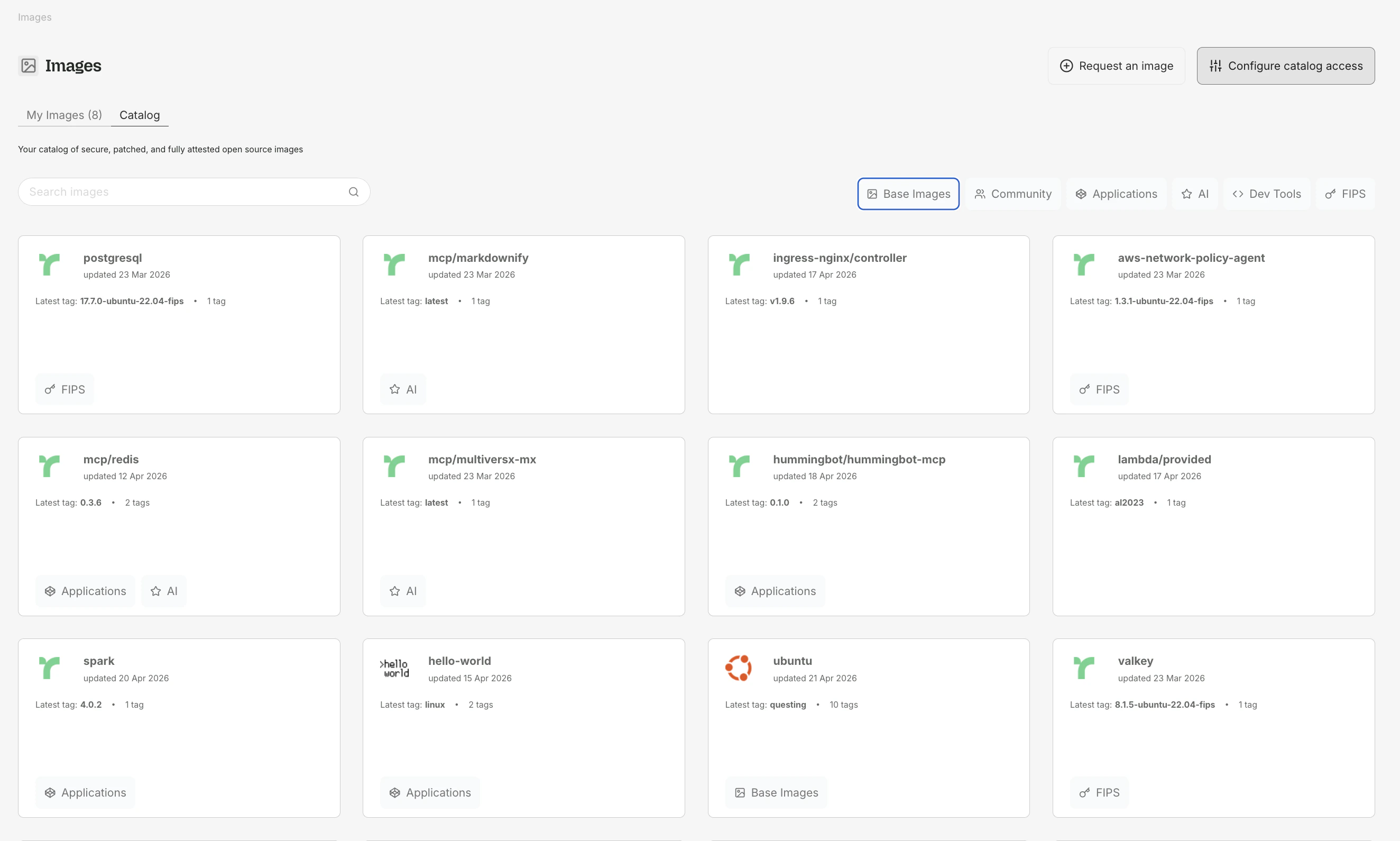
The Image Catalog lists all container images available through Root Image Catalog at `cr.root.io`. Access it at [app.root.io/images/catalog](https://app.root.io/images/catalog).
 ### What you see
The catalog displays images that have active subscriptions. Each image card shows:
* **Image name** (e.g., `python`, `node`, `postgres`)
* **Available tags** with architecture indicators (amd64, arm64)
* **Vulnerability reduction chart** - a before/after comparison of Critical and High CVEs between the upstream image and Root's patched version
Images that are not actively subscribed by any customer may not appear in the public catalog. Any image can be added within 48 hours upon request — contact Root at [root.io/contact](https://www.root.io/contact).
### Subscribing to an image
Browse or search the catalog for the image you need.
Click the image to view available tags. Choose the tag matching your current usage (e.g., `3.11-slim-bookworm`).
Click **Subscribe** on the tag. Root begins scanning for vulnerabilities and generating patched versions.
Pull the patched image from Root's registry:
```bash theme={null}
docker pull cr.root.io/python:3.11-slim-bookworm
```
### Vulnerability charts
Each image tag page includes a before/after vulnerability chart showing how Root reduces Critical and High CVEs over time. The chart plots counts across successive scans so you can see the remediation trend.
For images based on older distributions (e.g., Debian Bullseye, Amazon Linux), Root may not achieve zero vulnerabilities because backports are not always available. The chart indicates when this is the case.
### Architecture support
Root images are available for both `amd64` and `arm64`. The catalog shows which architectures are available for each tag. Docker automatically selects the correct architecture when pulling.
***
## My Images
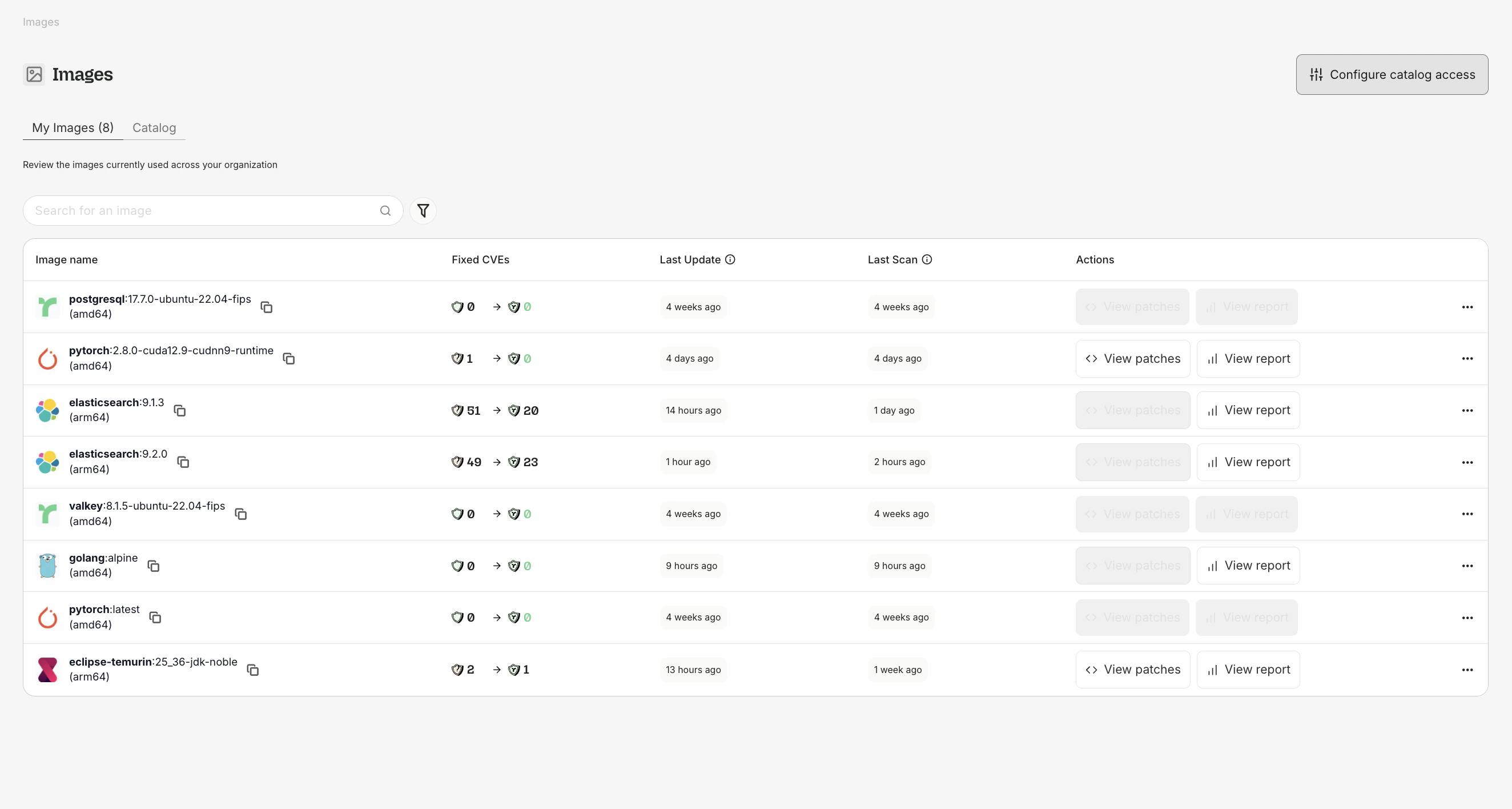
**My Images** shows the images your organization is currently subscribed to.
### What you see
The catalog displays images that have active subscriptions. Each image card shows:
* **Image name** (e.g., `python`, `node`, `postgres`)
* **Available tags** with architecture indicators (amd64, arm64)
* **Vulnerability reduction chart** - a before/after comparison of Critical and High CVEs between the upstream image and Root's patched version
Images that are not actively subscribed by any customer may not appear in the public catalog. Any image can be added within 48 hours upon request — contact Root at [root.io/contact](https://www.root.io/contact).
### Subscribing to an image
Browse or search the catalog for the image you need.
Click the image to view available tags. Choose the tag matching your current usage (e.g., `3.11-slim-bookworm`).
Click **Subscribe** on the tag. Root begins scanning for vulnerabilities and generating patched versions.
Pull the patched image from Root's registry:
```bash theme={null}
docker pull cr.root.io/python:3.11-slim-bookworm
```
### Vulnerability charts
Each image tag page includes a before/after vulnerability chart showing how Root reduces Critical and High CVEs over time. The chart plots counts across successive scans so you can see the remediation trend.
For images based on older distributions (e.g., Debian Bullseye, Amazon Linux), Root may not achieve zero vulnerabilities because backports are not always available. The chart indicates when this is the case.
### Architecture support
Root images are available for both `amd64` and `arm64`. The catalog shows which architectures are available for each tag. Docker automatically selects the correct architecture when pulling.
***
## My Images
**My Images** shows the images your organization is currently subscribed to.
 ### What you see
| Column | Description |
| ---------------- | ------------------------------------------------------------ |
| **Image:Tag** | The image name and tag |
| **Architecture** | amd64, arm64, or both |
| **Before** | Critical + High CVE count in the upstream image |
| **After** | Critical + High CVE count in Root's patched version |
| **Status** | Whether the image is up to date, pending scan, or has issues |
### Image reports
Click **View Report** on any subscribed image to open the Image Report:
* **Vulnerability breakdown** by severity (Critical, High, Medium, Low)
* **Security Findings table** listing each finding with status, severity, and SLA information
* **Before/after chart** showing remediation progress over time
* **Package details** for every OS package in the image
After subscribing to a new image, security findings data may take a few minutes to become available. During this period the report may show a loading state.
### FIPS images
Root offers FIPS 140-3 validated images for regulated environments, identified with a FIPS badge in the catalog. See [FIPS Images](/ric/fips-images) for details.
***
## Pulling Root images
### What you see
| Column | Description |
| ---------------- | ------------------------------------------------------------ |
| **Image:Tag** | The image name and tag |
| **Architecture** | amd64, arm64, or both |
| **Before** | Critical + High CVE count in the upstream image |
| **After** | Critical + High CVE count in Root's patched version |
| **Status** | Whether the image is up to date, pending scan, or has issues |
### Image reports
Click **View Report** on any subscribed image to open the Image Report:
* **Vulnerability breakdown** by severity (Critical, High, Medium, Low)
* **Security Findings table** listing each finding with status, severity, and SLA information
* **Before/after chart** showing remediation progress over time
* **Package details** for every OS package in the image
After subscribing to a new image, security findings data may take a few minutes to become available. During this period the report may show a loading state.
### FIPS images
Root offers FIPS 140-3 validated images for regulated environments, identified with a FIPS badge in the catalog. See [FIPS Images](/ric/fips-images) for details.
***
## Pulling Root images
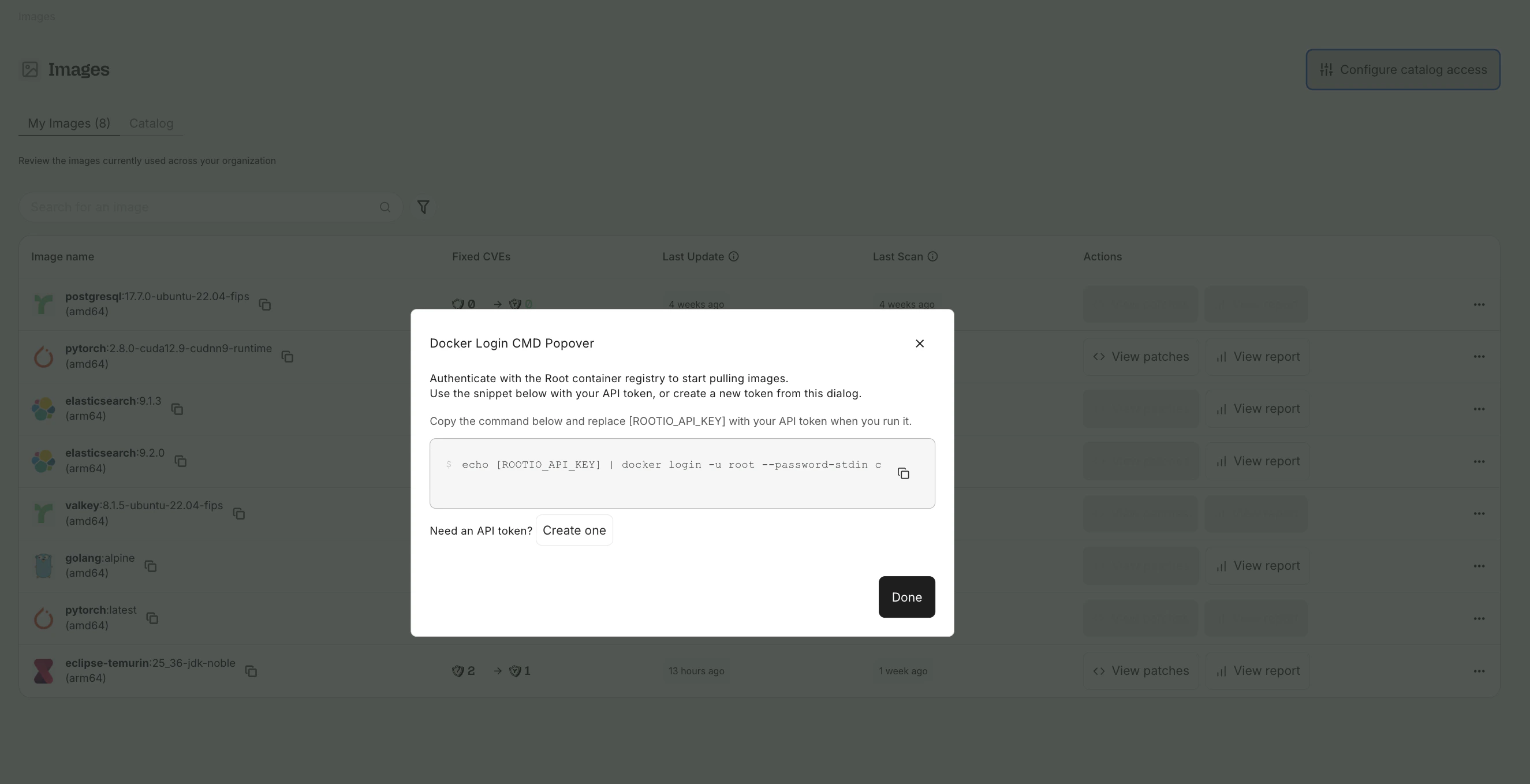 Replace Docker Hub references with the Root equivalent:
```dockerfile theme={null}
# Before (upstream)
FROM python:3.11-slim-bookworm
# After (Root-secured)
FROM cr.root.io/python:3.11-slim-bookworm
```
Same tags, same behavior, same package versions - with Critical and High CVEs removed.
For full setup, see [Getting Started with RIC](/ric/getting-started). For registry mirror configuration (ECR, JFrog Artifactory), see the **Registry Mirrors** section under Root Image Catalog in the sidebar.
Replace Docker Hub references with the Root equivalent:
```dockerfile theme={null}
# Before (upstream)
FROM python:3.11-slim-bookworm
# After (Root-secured)
FROM cr.root.io/python:3.11-slim-bookworm
```
Same tags, same behavior, same package versions - with Critical and High CVEs removed.
For full setup, see [Getting Started with RIC](/ric/getting-started). For registry mirror configuration (ECR, JFrog Artifactory), see the **Registry Mirrors** section under Root Image Catalog in the sidebar.